

Android keyboard is modernized and improved from time to time, but there are some handy tricks that can save you time when typing on your Android phone or tablet. These tricks will blow your mind.
In addition to the advanced features like in-keyboard internet searching and on-the-fly language translation (tap the greater-than symbol in the keyboard's upper-left corner if you haven't yet found all that stuff), Gboard has a handful of hidden time-saving shortcuts. And whether you're typically a tapper, a swiper, a two-thumb pecker, or anything in between, they can go a long way toward making your mobile typing more efficient.
So, pull up Gboard on a phone or tablet near you, and try these out-of-sight options:
1. Careful control of your on-screen cursor
Ever find yourself in the midst of typing something and then realize you need to add or change something several characters back? We've all been there—and trying to get that tiny on-screen cursor exactly where you want it can quickly turn into an exercise in frustration.
Gboard has a better way: Just touch your finger to the space bar, and—without lifting it up—slide it to the left or right. That'll move your cursor accordingly and let you place it wherever it's needed.

And a bonus tip: If you want even more precise cursor control, tap the greater-than symbol in Gboard's upper-left corner and then tap the "I" in the center of the top-bar menu. That'll give you a series of arrows for positioning the cursor and optionally also selecting, copying and pasting text.
2. Fast access to numbers and symbols
On the surface, Gboard seems to make it slightly difficult to get to special characters such as the underscore or the asterisk. But there's actually a super-simple way to find and access practically every number or symbol you could ever need.
All you gotta do it touch your finger to the "?123" key and then slide it upward across the keyboard. You'll see a screen full of numbers and special characters instantly appear, and you can then just swipe your finger (without lifting) to the one you want. Once you let go, that character will be inserted into your text, and the keyboard will go back to its regular QWERTY panel.
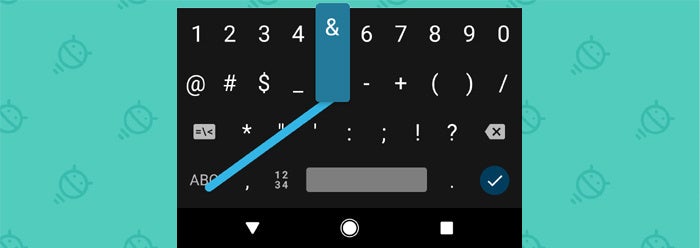
Some of the symbols—such as the parentheses, for instance—have even more special characters embedded within them. You'll see an ellipsis (...) at the bottom of their keys when you slide over them, and if you keep your finger in place for a second or so, you'll see a selection of additional related characters appear for your sliding-selection pleasure.
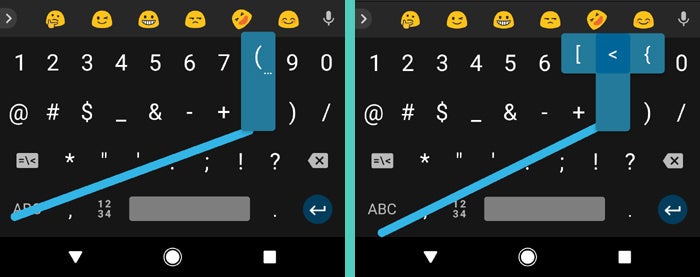
Another bonus tip: You can make Gboard display all the basic special characters within its main keyboard interface, too—in the corner of each letter—so you'll know exactly where to swipe before you begin. That'll also give you the option of long-pressing any letter to pull up the associated symbol.
To enable that feature, tap the greater-than symbol in Gboard's upper-left corner and then tap the gear-shaped settings icon in the top-bar menu. Select "Preferences," then scroll all the way down and activate the toggle next to "Long-press for symbols."
Now all those crazy characters are right at your fingertips, whenever and however you want them.
3. Quick capitalization of an individual letter
Whether you're typing out an acronym or just feeling especially shouty, there are times when you want to capitalize a letter beyond the first character of a sentence.
And sure enough, Gboard has a hidden shortcut that makes that easy to do: Touch your finger to the caps-lock key (the up-facing arrow to the left of the "z")—and instead of letting go, keep your finger down and swipe over to whatever letter you want. That letter will come through capitalized, and the keyboard will then automatically switch back to lowercase when you let go.
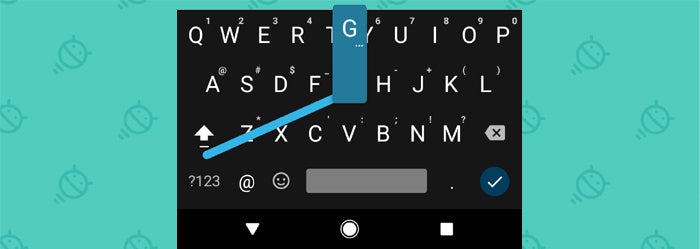
Handy, right?
4. Formatted fractions in a fraction of a second
Want to talk fractions without wasting your time? Long-press any number in Gboard to get a pop-up list of common fractions involving that figure.
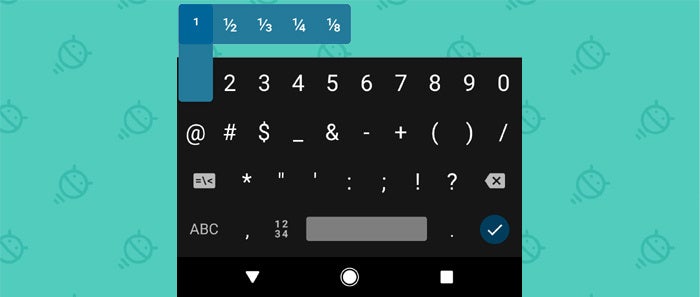
And one more bonus: This'll work by first tapping the "?123" key and then long-pressing a number—or by using the swipe-to-get-a-number trick explained in tip #2. In the latter case, just touch and hold the "?123" key and slide your finger to the number you want. Let your finger rest on that number for a second or so, and any available fractions will automatically appear.
Let me tell you, With shortcuts like these, it's never been easier to see the glass ½ full.
Source: computerworld


0 comments:
Post a Comment